
What the Green Dot on Your Android Phone Means and Why You Should Pay Attention to It
The Small Green Dot Is a Built-In Privacy Feature
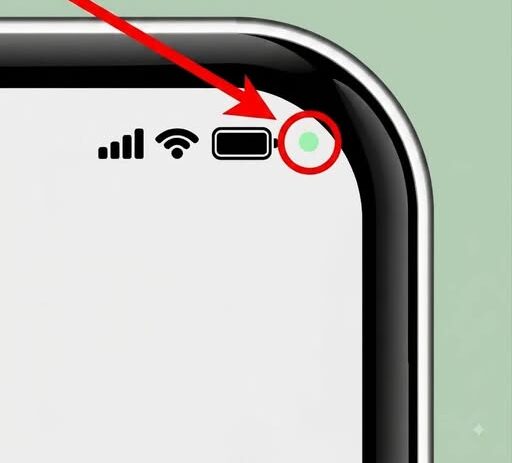
If you have ever noticed a small green dot appearing near the top corner of your Android screen, there is usually no reason to assume something is wrong with your phone.
The indicator is part of Android’s built-in privacy system and is designed to let you know when an application is actively accessing sensitive hardware on your device.
More specifically, the green dot can appear when an app is using your camera, your microphone, or both at the same time.
Rather than being a random symbol or technical glitch, the indicator serves as a simple warning that one of these features is currently active.
This gives users an immediate visual way to recognize when an application may be listening through the microphone or using the camera.
Why Android Shows the Green Indicator
Smartphones contain several features that applications may request permission to use.
Among the most sensitive are the camera and microphone because they can capture images, video, and audio from the environment around the device.
The green privacy indicator helps make this activity more visible.
Without such an alert, users might not immediately realize that an application has activated the microphone or camera.
By displaying the dot at the top of the screen, Android gives users a noticeable sign that one or both of these components are being accessed.
The appearance of the indicator does not automatically mean anything suspicious is happening.
Many ordinary applications legitimately need access to the camera or microphone in order to provide their basic functions.
The important point is that the green dot gives you an opportunity to recognize when that access is happening.
When Seeing the Green Dot Is Completely Normal
There are many situations in which the privacy indicator can appear for an expected reason.
If you deliberately open an application that requires camera or microphone access, seeing the green dot should not necessarily be surprising.
The indicator simply confirms that the feature is currently being used.
What matters most is whether the appearance of the dot matches what you are doing on the phone at that moment.
If you knowingly opened an application that requires one of these permissions, the indicator is functioning as intended.
The privacy feature becomes more useful when the dot appears at a time when you did not expect the camera or microphone to be active.
What to Do If the Green Dot Appears Unexpectedly
If the green indicator suddenly appears and you are unsure why, Android provides a straightforward way to investigate.
Swipe down from the top of the screen to open the quick-settings panel.
This area can help you identify which application triggered the privacy indicator.
Checking the app responsible can quickly clarify whether the camera or microphone use makes sense.
If the application is one you recognize and its activity is expected, there may be nothing further you need to do.
However, if the green dot was activated by an app that you did not expect to be using the camera or microphone, it may be worth reviewing that application’s permissions.
The purpose of the indicator is to provide visibility, allowing you to make that decision instead of leaving camera and microphone access unnoticed.
You Can Review Camera and Microphone Permissions
Android also gives users the ability to manage which applications are allowed to access sensitive features.
If you want to review those permissions, open the Settings menu on your phone.
From there, go to Privacy and then open Permission Manager.
This section allows you to examine which applications have been granted access to the camera and microphone.
Reviewing these permissions can be particularly useful if you have installed many applications over time.
An app may have received permission when it was first installed even though you no longer use the feature that required that access.
By checking Permission Manager, you can decide whether each application still needs the privileges it currently has.
Removing Permissions You No Longer Want
If you discover an application with camera or microphone access that does not appear necessary, Android allows you to revoke that permission.
This provides a simple way to reduce unnecessary access without immediately removing the entire application.
Permissions can accumulate as people install new apps, test services, or agree to requests during initial setup.
Over time, users may forget which programs were granted access to sensitive parts of the device.
Periodically reviewing camera and microphone permissions can therefore help keep those privileges limited to applications that actually need them.
The green indicator and Permission Manager work together as useful privacy controls.
One alerts you when access is happening, while the other lets you decide whether that access should continue to be allowed.
Suspicious Applications Deserve Additional Attention
If the green dot appears and the application responsible is unfamiliar, that is a good reason to investigate further within the phone’s settings.
You can begin by checking what permissions the app has been granted.
If the application should not reasonably need access to the camera or microphone, those permissions can be removed.
If you do not recognize the app or no longer trust it, deleting it from the phone is another option.
An application that does not belong on the device should not continue having access to sensitive hardware.
Removing unnecessary or suspicious software can also simplify permission management because fewer programs remain capable of requesting access.
The Green Dot Does Not Automatically Mean Someone Is Watching You
It is important not to interpret the privacy indicator as automatic evidence that someone is spying on you.
The dot itself has a much simpler meaning.
It tells you that an application is currently using the camera, microphone, or both.
Whether that access is expected depends on which app triggered the indicator and what you were doing at the time.
Seeing the symbol while intentionally using a feature that depends on the microphone or camera is very different from seeing it appear unexpectedly while using an unrelated application.
That distinction is why Android gives users the ability to check the active app.
The indicator should be treated as information that helps you make a privacy decision rather than as proof that something malicious is happening.
Why Camera and Microphone Permissions Matter
Camera and microphone access deserve special attention because they involve information from the physical environment around the phone.
When an application has permission to use these features, it can activate functionality involving images, video, or audio.
That does not mean every application with such permission is doing anything improper.
However, it does mean users should understand which programs have been granted access.
The privacy indicator helps by making active use visible rather than leaving it completely hidden in the background.
Permission controls then allow users to take action when access seems unnecessary.
A Quick Check Can Explain the Indicator
When the green dot appears, there is no need to immediately assume the worst.
The first step is simply to identify the application responsible.
Swipe down to open the quick-settings panel and check which app is using the sensitive feature.
Once you know the app, consider whether its camera or microphone use matches what you were doing.
If it does, the green dot is simply confirming normal activity.
If it does not, you can move to the next step and review the app’s permissions.
This process gives users a practical way to respond without relying on guesswork.
Permission Manager Gives You More Control
The Permission Manager section of Android’s privacy settings provides a broader look at application access.
Instead of waiting for the green indicator to appear, you can proactively review which apps are currently allowed to use the camera or microphone.
This can help identify permissions that are no longer useful.
For example, an application you rarely use may still retain access granted months earlier.
If that access is unnecessary, you can revoke it and limit the number of apps capable of activating sensitive hardware.
Managing permissions in this way gives users more direct control over how applications interact with the device.
Deleting an App May Be Appropriate in Some Cases
Revoking a permission is often enough when you trust an application but do not want it accessing the camera or microphone.
However, there may be situations where removing the application entirely makes more sense.
If an unfamiliar program repeatedly triggers the privacy indicator or appears to be accessing features it should not need, uninstalling it can eliminate that access altogether.
The same applies to applications you no longer use.
Keeping unnecessary software on the phone can make it harder to remember which programs have been granted certain permissions.
Removing unused apps can therefore make privacy management simpler and easier to understand.
Android’s Indicator Is Designed to Increase Transparency
The main purpose of the green dot is transparency.
Instead of requiring users to search through menus every time the camera or microphone becomes active, Android provides a visible signal directly on the screen.
This makes it easier to notice unexpected activity.
The feature also encourages users to pay closer attention to the relationship between apps and the permissions those apps have been given.
Many people grant access during installation or setup without thinking about it again.
The privacy indicator acts as a reminder that those permissions can result in real-time access to device hardware.
Regular Permission Reviews Can Be Useful
You do not have to wait until something seems suspicious before checking your privacy settings.
Reviewing camera and microphone access occasionally can help ensure that permissions still match your current use of the phone.
Applications change, people stop using certain services, and permissions that were once necessary may no longer be relevant.
A quick review under Settings, Privacy, and Permission Manager can help identify apps that retain access unnecessarily.
You can then decide whether to leave the permission in place, revoke it, or remove the application.
This puts the decision back in your hands.
The Green Dot Is a Warning Tool, Not a Reason to Panic
The appearance of the small green dot can be surprising, especially if you have never noticed it before.
However, its presence is actually evidence that Android is trying to make camera and microphone use more visible.
The indicator is designed to alert you whenever an application is actively using one or both of those features.
If the activity is expected, no additional action may be necessary.
If it appears unexpectedly, checking the quick-settings panel can reveal which application triggered it.
From there, Android’s privacy controls allow you to review or revoke camera and microphone permissions as needed.
If an app seems suspicious or should not have access to those features, removing its permissions or uninstalling it can provide additional control.
The most important thing to remember is that the green dot itself does not prove that someone is secretly watching or listening.
It is a built-in privacy notification intended to help you see when sensitive hardware is active and decide whether that activity is appropriate.
Understanding what the indicator means can turn an alarming-looking symbol into a useful privacy tool that helps you stay informed about what the applications on your Android phone are doing.